

Google Business Profile Optimization: A Practical Guide for Small Businesses
Ask ten small business owners where their customers find them, and most will probably say some version of “Google.” Then look at their Google Business Profile (GBP) and you’ll often find a listing with a few old photos, no services listed, holiday hours from two years ago, and a one-star review sitting unanswered at the top. A typical neglected profile looks like that.
For many local searches, the customer can get what they need — hours, phone number, directions, reviews — without ever opening your website. They see the map pack — those three business listings with stars, hours, and a phone button — and they decide right there. Your GBP works like a storefront on the busiest street in town, and plenty of small businesses leave it half-finished.
This guide is what we do when we optimize a Google Business Profile — for our own agency and for clients. The full process, no shortcuts, and no promises we can’t keep.
We’re based in Lahore, Pakistan, and US local businesses are a core part of our client work.
Google Business Profile optimization is the process of keeping your business information accurate, selecting relevant categories, adding services and photos, earning genuine reviews, and maintaining the details customers use to contact or visit you.
The short version — what this guide covers:
- Claim and verify your listing
- Confirm your business name, eligibility, and details are correct
- Choose the right categories and list every service
- Set accurate hours, address or service area, and attributes
- Ask for reviews and respond to all of them
- Add real photos — and keep adding them
- Post weekly and keep information fresh
- Check that your website and major listings agree with your profile
What a GBP Really Is in 2026

Google Business Profile is the panel Google shows when someone searches your business name or what you do near them. Name, reviews, hours, photos, phone number, directions, a link to your site. For “near me” searches, it’s the first thing many searchers interact with — and many take the next step without ever clicking through to a website. They call from the listing. They get directions from the listing. They read your reviews on the listing and pick you or your competitor right there.
That means two things. First, an incomplete profile isn’t neutral — it can be losing you customers who were already looking for what you sell. Second, GBP optimization is as much about presentation as technical detail: getting the facts right in the exact place where customers decide.
One caveat before we start: a perfect profile won’t save a business people don’t want to buy from, and it won’t outrank a competitor with ten times your reviews overnight. What it does is make sure that when someone is choosing, you’re not losing on avoidable mistakes. That’s worth real money.
Step 1: Claim It, Verify It, Own It
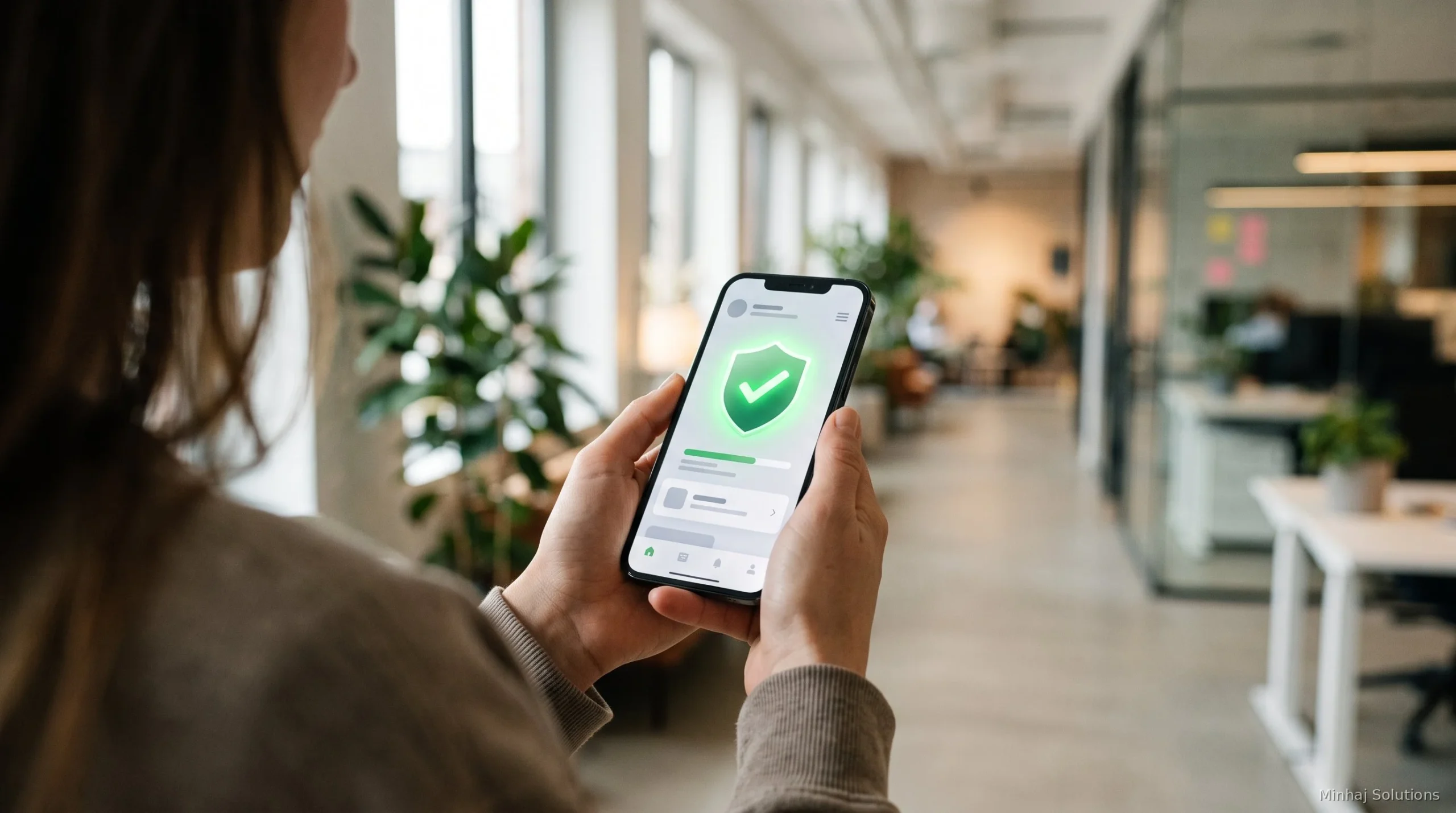
This sounds obvious, but I still run into businesses whose profile is unclaimed — or worse, claimed by a former employee, an old agency, or nobody-knows-who. If you can’t log in and edit it, nothing else in this guide matters.
Search your business on Google Maps. If you see an option like “Claim this business” or “Own this business?” — the exact label varies — claim it. Verification is often done by video these days: Google wants to see your storefront, your signage, your tools of the trade, sometimes a utility bill or business license. Have those ready. Follow the verification method Google actually offers your profile — phone, email, and postcard verification still exist for some business types, so don’t panic if video isn’t offered to you. Service-area businesses (plumbers, cleaners, mobile services) get verified by showing their vehicle, equipment, or service area evidence.
One more ownership check while you’re here: make sure no one else holds admin access who shouldn’t. Old agencies, former staff, mystery “managers” — remove them. Your profile is a business asset; treat access like you’d treat the keys to the shop.
Step 2: Get the Name Right (and Leave It Alone)
Your business name on GBP should be your real-world business name. Exactly as it appears on your storefront, your invoices, your website. That’s usually also the name customers use — but if they have a shorter nickname for you, that nickname doesn’t belong in the name field.
Do not stuff keywords into it. “Mike’s Plumbing — Best Emergency Plumber Austin TX 24/7” can get you flagged, and Google can suspend listings for keyword stuffing. It’s the single most common self-inflicted GBP wound we see.
Write it the same way everywhere, and don’t touch it again unless the business genuinely rebrands. Google’s guidelines exclude taglines and extra information from the name field — no service descriptions, location add-ons, hours, or phone numbers. Suffixes like LLC or Inc. belong there only if they’re genuinely part of the name on your signage and invoices.
Step 3: The Primary Category — Choose It Deliberately
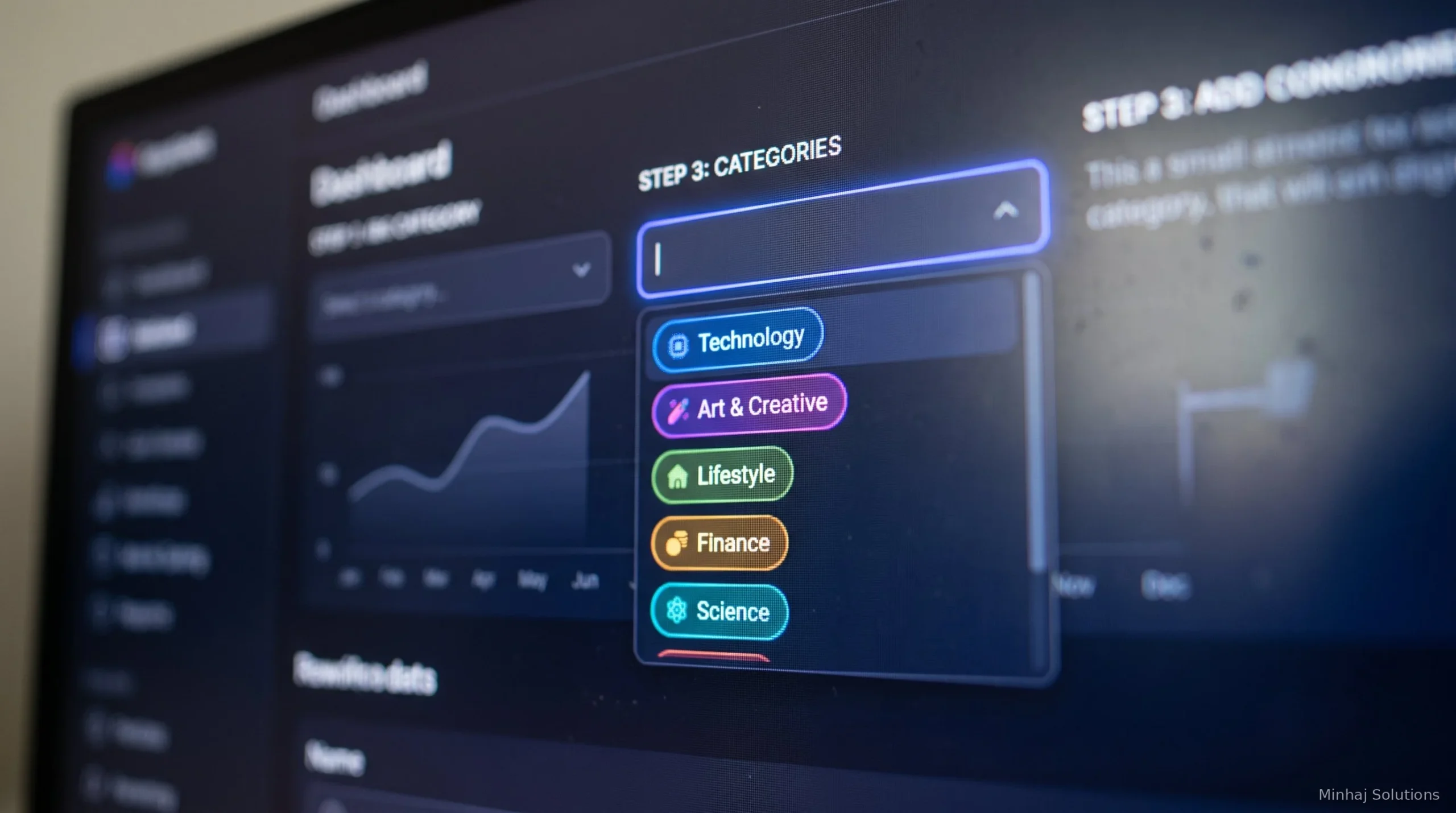
The primary category tells Google what you are, and it determines which searches you can show up for.
One note on ranking factors before we go further: Google says local results are based on three signals — relevance, distance, and prominence — and publishes no ranking order for them. Practitioners generally treat distance (how close the searcher is) as the one you can least control. Of the things you can influence, the primary category is where deliberate choice pays off most. Reviews are among the most influential things you can shape but not directly control — more on the review system in Step 7. This guide focuses on what’s in your hands.
Most businesses get the category half-right: they pick something close enough and stop. Don’t stop. Google has thousands of categories, and the difference between “Marketing Agency” and “Internet Marketing Service,” or between “Dentist” and “Cosmetic Dentist,” can be the difference between showing up and not.
Here’s the process: search your main service on Google Maps in your city and look at what categories your top competitors use. There are free category-checker tools that show you exactly which primary and secondary categories any listing uses — run your three strongest competitors through one and compare. Then pick the single category that best describes your core revenue driver as primary, and add relevant secondaries for the rest. A law firm might be “Personal Injury Attorney” primary with “Law Firm” and “Legal Services” as secondaries. A restaurant might be “Italian Restaurant” primary with “Pizza Restaurant” and “Caterer” secondaries.
Review this once a year. Google adds and renames categories, and businesses evolve. A category that’s wrong is worse than useless — it tells Google to show you for the wrong searches.
Step 4: List Every Service Like It Earns You Money (Because It Does)
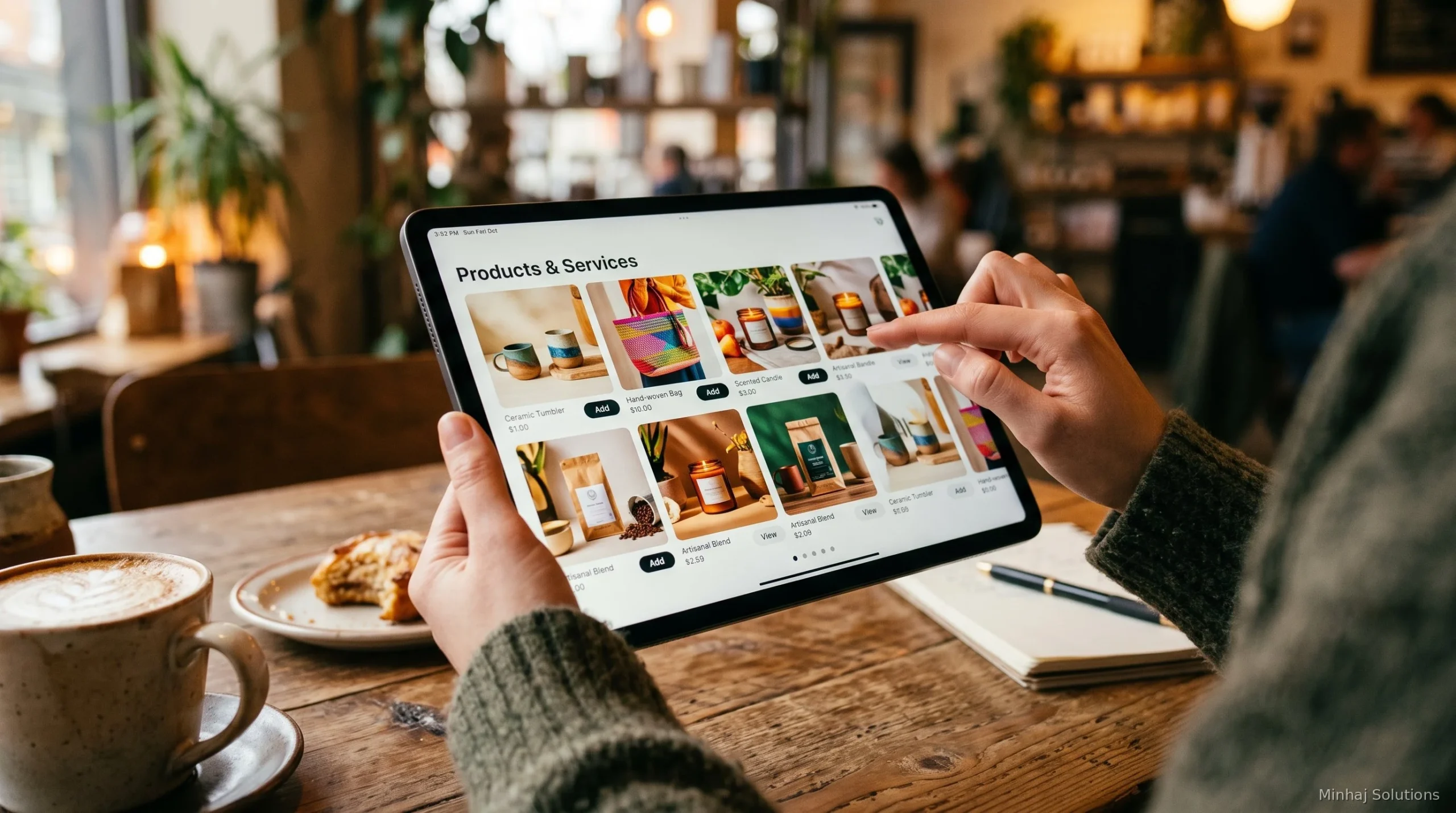
This is where small businesses often leave opportunity unused. They fill in the category and skip the services section entirely — or list three generic ones.
Every service you offer should be its own entry, with a real description. Not “plumbing” — “Emergency pipe repair, water heater installation, drain cleaning, leak detection.” Not “digital marketing” — for our own profile we list eleven distinct services, each with its own description, because that’s how customers often search: for the specific thing they need rather than only the category.
Write each service description the way you’d explain it to a customer standing in front of you: what it is, who it’s for, what makes your version good. Keep it short — within the limit shown in your Business Profile editor. No keyword stuffing — write for the humans reading them, because they’re the ones who call.
If you sell products, don’t treat the Products section as an afterthought: on a live listing, products sit high on the panel with photos and prices, and they’re among the most-clicked parts of the profile. Add your key products with real photos and real prices.
Step 5: Hours, Holiday Hours, and Getting the Details Right
Put your real hours in. All of them. Including the holiday hours Google prompts you for every season — the businesses that ignore those prompts are the ones customers drive to on a holiday and find closed.
Here’s why this matters more than people think: Google shows “Open now” / “Closed” prominently, and it factors into whether you show up for “open now” searches. Wrong hours don’t just annoy one customer. In our experience, inconsistent information across the web can cause problems for how your listing performs. That’s why every piece of your public information should agree: we keep our website’s structured-data hours consistent with our GBP hours — Monday–Saturday 10:00–20:00, Sunday closed (our agency’s hours in Lahore, Pakistan, PKT; in schema that’s Mo-Sa 10:00-20:00).
Special hours for holidays, seasonal schedules, summer hours — set them in advance. It takes five minutes and it prevents the worst kind of review: “drove 30 minutes, they were closed.”
Step 6: The Address Question (and Service-Area Businesses)
If customers come to you, show your address. If you go to customers, hide it and define your service area instead. Google lets service-area businesses list the cities/regions they serve without displaying a street address — use that. Hybrid businesses — a shop customers visit plus a service area you cover — can show the storefront address and define a service area too, as long as the location is staffed during business hours.
What you must not do is use a fake address, a PO box, or a rented mailing address where you don’t actually operate. Virtual offices and similar setups aren’t eligible unless they’re staffed as a real service-area location during business hours, per Google’s guidelines. If you’re a legitimate service-area business, the service-area setting exists for you. Use it honestly.
And the unglamorous part: wherever your name, address, and phone number appear online — your website footer, Facebook page, directories, your email signature — they should match your GBP. Same abbreviations, same formatting. We treat NAP consistency as a first-class task, not a nice-to-have: matching details tell customers this business is real and its information is stable.
Step 7: Reviews — the System, Not the Wish
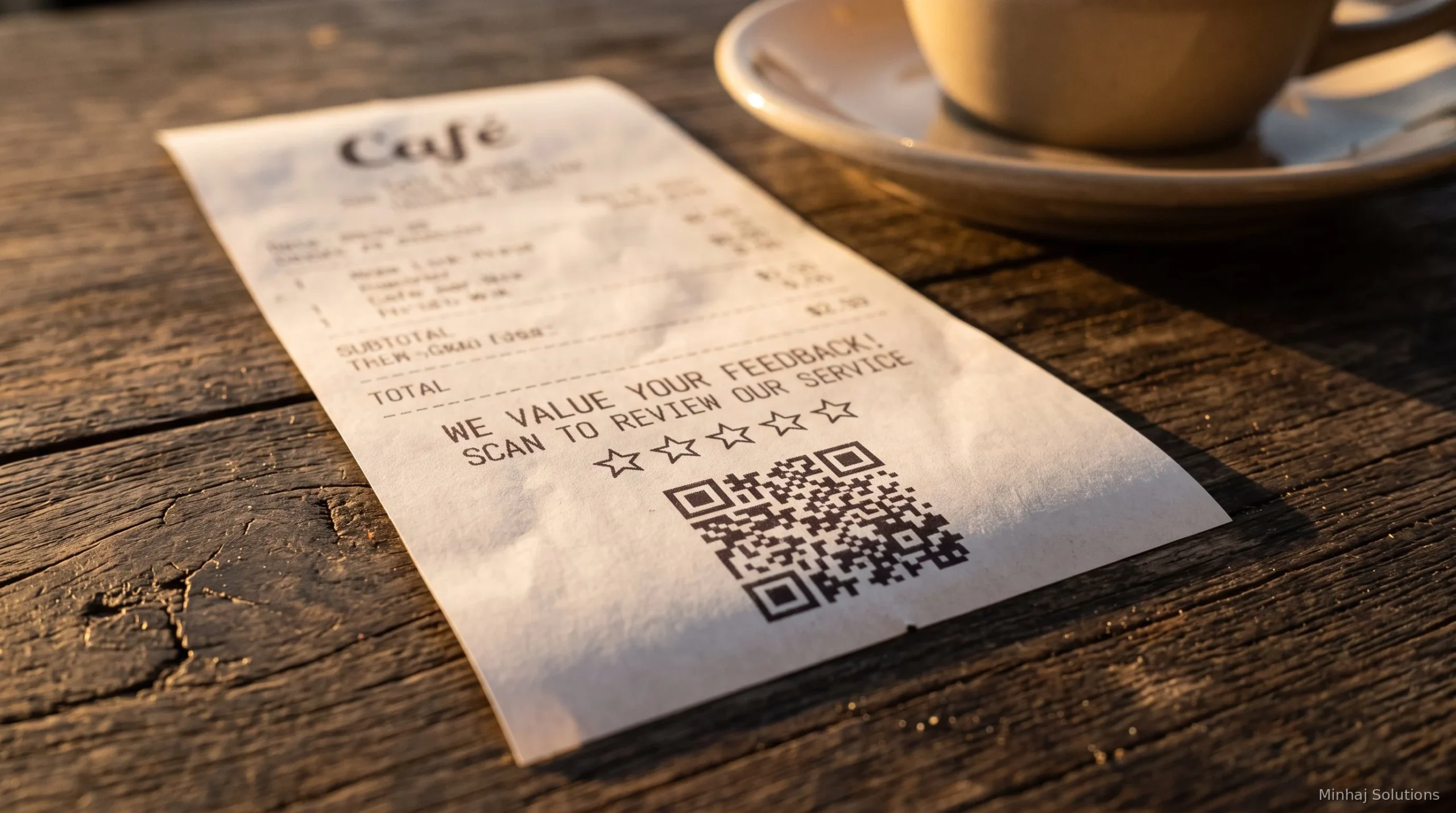
Reviews are among the most influential things on your profile that you can shape but not directly control. Star rating shows up in the map pack. Review count shows up next to it. And review text matters to the humans reading it — when customers naturally mention your services and your city (“best plumber in Austin,” “great kitchen remodel”), future customers instantly see the fit. It’s one of the few levers that’s entirely earned.
So here’s the system, the one we actually run:
Ask every customer — happy or not — at the end of the job. Not “if you get a chance” — ask directly, at the moment the work is fresh. The job just finished, the site just launched, the problem just got fixed. That’s the window. And ask everyone: only soliciting your happiest customers to skew your rating is review gating, and Google’s guidelines warn against it.
Make it frictionless. Google gives you a short review link and a QR code. Put the QR code on receipts, on the thank-you email, on a card you hand over. Every extra click kills a percentage of reviews.
Respond to every single review. Positive ones get a genuine thank-you (mention the service — “glad the new website is bringing in leads” beats “thank you!”). Negative ones get a calm, professional response that shows future readers how you handle problems. Never argue. Never get defensive.
Set a target inside the company and track it. A number you’re tracking is a number that moves.
Never buy reviews. Not from “review sellers,” not from friends who were never customers, and not incentivized in any form — Google’s policy bars incentivizing reviews generally, not just five-star ones. Google removes fake reviews in waves, and businesses caught buying them risk having genuine reviews removed and the profile suspended.
One thing I want to be straight about: reviews compound. The first reviews are the hardest. In our experience, after that each new review matters a little less individually — but the velocity (a steady stream vs. nothing for a year) keeps telling customers that the business is alive. A profile with 50 reviews and none in the last six months looks sleepier than one with 25 and three this month.
Step 8: Google Business Profile Posts — Stay Visibly Active
A business that posts weekly looks alive; a business whose latest post is from 2023 looks neglected. That contrast is most of the argument for GBP posts.
You don’t need a content strategy. One post a week is plenty to start:
- What’s new: a new service launched, a new team member, a new location, a new certification, a completed project (with the client’s permission), a milestone, a behind-the-scenes photo.
- Events: workshops, open houses, webinars.
- Offers: a seasonal discount, a package, a limited-time service.
Posts don’t vanish after a few days: “What’s new” posts stay visible on your profile for up to six months — the carousel shows the most recent first — while Offers and Events run until their end date. Older posts move behind a “view previous updates” link rather than disappearing, so review your post history occasionally and delete anything out of date. The cadence matters more than the expiry — a steady weekly rhythm beats a burst of five posts followed by six months of silence.
Keep each post short — a headline, two or three lines, one clear call to action, one good photo. Real photos, not stock. A photo of your actual team, your actual work, your actual shop will usually outperform a stock photo, because customers are deciding whether to trust you, not a model.
Step 9: Add Photos and Videos to Your Google Business Profile

Businesses with photos tend to get more engagement on their listings — the principle matters more than any single statistic: customers choose with their eyes.
Upload in this order: logo, cover photo (your storefront or your team at work — the thing a customer should recognize), then real photos of your work, your team, your interior/exterior. Add new photos monthly. Short videos (under 30 seconds) of real work are worth adding — a before-and-after, a walkthrough, the team on a job.
What not to upload: stock photos (customers can tell, and it erodes the exact trust you’re building), blurry shots, and heavy text baked into the image — a clean photo usually performs better. Let the listing do the talking.
Step 10: Ask Maps Takes Over
Google is retiring the public Q&A section on Business Profiles. The Q&A API was discontinued on November 3, 2025, and Google confirmed on December 3 that the public Q&A section would be phased out in favor of Ask Maps, with removal rolling out gradually into 2026 — though availability varies by listing, so some profiles may still show old Q&A threads. Seeding your own questions and answers, once a standard tactic, is on its way out and no longer worth building around.
Its replacement is Ask Maps: an AI feature inside Google Maps that answers customer questions on the spot, pulling from your profile fields, reviews, descriptions, and photos. While the old Q&A section still appears on your listing, answering genuine customer questions there is still worth the few minutes it takes — Google has said owner answers can be used to help respond to similar questions on Maps — but don’t build your strategy on a feature that’s being phased out.
The practical move going forward: make sure the information Google holds about your business is accurate — complete profile fields, a website FAQ page covering the questions customers actually ask (“Do you offer emergency service?” “Which areas do you serve?” “Do I need an appointment?”), good practice regardless, and reviews that mention your services naturally. Where accurate information is thin, an AI-generated answer has more room to get it wrong. And wrong answers lose customers.
Step 11: Booking, Contact Options, and the Attributes
Google shut down its built-in Business Profile chat on July 31, 2024 — so if you’re following an old guide that tells you to “turn on messaging,” that setting no longer exists. What you can do now: under Edit profile > Contact, some profiles can add WhatsApp or SMS as a contact option — Wiremo’s walkthrough covers the WhatsApp click-to-chat setup in detail, though availability has varied over time, so check what’s offered on your own listing and only enable what you’ll actually staff.
The underlying rule hasn’t changed: only offer a contact channel you’ll actually staff. An unanswered message is worse than no messaging option at all, because now the customer waited and got nothing. List a phone number you actually answer, or a WhatsApp/SMS option you’ll respond to quickly.
If you take appointments, connect your booking link. Fill in the attributes honestly: wheelchair accessible, women-led, LGBTQ+ friendly, outdoor seating, free Wi-Fi — whatever is true. These filter into searches (“wheelchair accessible restaurant near me”) and they cost nothing to set. Don’t claim what isn’t true; that’s a one-star review waiting to happen.
Step 12: The Advanced Layer (When the Basics Are Done)

Once the basics are solid, here’s the layer that separates good from excellent — the stuff we do after everything above is in place:
Mirror on Bing Places. Google isn’t the only map. Bing powers a meaningful share of desktop search. The fastest path: import from your Google Business Profile right inside Bing Places — authorize once and Bing pulls your name, address, hours, categories, and photos, often verifying instantly since Google already verified you. You can keep the two in sync on a schedule, with your GBP as the single source of truth. Then review the imported fields — Bing’s categories don’t map one-to-one with Google’s — and it’s just maintenance.
Structured data that points at your GBP. On your website, your LocalBusiness/Organization schema should reference your GBP listing — hasMap for the Maps URL and sameAs for entity linking — which helps search engines treat your website and your map listing as the same entity. That’s technical housekeeping, not a ranking tactic — and it never replaces claiming and verifying the profile itself. We run this on our own site with a shared identifier across our schemas.
Citations and listicles. Get listed in the directories that matter for your industry and city — not hundreds of spammy ones, the real ones. And “best of” listicles (“Top 10 plumbers in Austin”) are worth pursuing genuinely: they’re where prospective customers look for reassurance that you’re a real, regarded business. We wrote a step-by-step guide to building local citations if you want the full process.
Don’t ignore Apple Business Connect. Apple Maps, Siri, and Spotlight draw on Apple’s own business data — so iPhone users searching there see that, not Google. (iPhone users searching in Safari or the Google Maps app still get Google results.) Claim it and keep the core fields matching.
What GBP Optimization Can’t Do (Read This Before You Start)
The limits, stated plainly:
- It won’t fix a bad business. If your service is poor, GBP optimization just helps more people discover that faster, in review form.
- It won’t beat a better-reviewed competitor overnight. Reviews compound over years. You can out-execute them on everything else, but there’s no shortcut past genuine customer satisfaction.
- It won’t work if you set-and-forget it. The businesses winning local search treat their profile like a living asset — weekly posts, monthly photos, regular review responses.
- It can’t be gamed safely. Keyword-stuffed names, fake addresses, bought reviews, review gating (asking only happy customers selectively to skew ratings) — Google catches these in waves, and penalties can include losing the listing entirely. The listing is worth more than any trick.
- It’s necessary but not sufficient. GBP is one pillar of local visibility. Your website, your reviews across the web, your citations, and your actual reputation all pull together. Anyone selling you “GBP optimization” as a complete local SEO package is selling you one piece of the job.
Your First 30 Days: The Checklist
Week 1 — Foundation: Claim and verify the listing. Fix the business name to your real name. Set the right primary category plus secondaries. Enter complete, accurate hours including upcoming holidays. Set address or service area honestly.
Week 2 — Content: List every service with a real two-to-three-sentence description. Upload logo, cover, and a good set of real photos. Add a website FAQ page covering your top customer questions — good practice on its own, and it keeps accurate answers where Google’s systems can find them. Fill in attributes. Connect booking; add a WhatsApp/SMS contact option only if you’ll staff it.
Week 3 — Reviews: Set your review target. Generate your short link and QR code. Start asking every customer at the end of the job. Respond to every existing review, including the old bad ones.
Week 4 — Rhythm: Publish your first weekly post. Set a recurring weekly slot for posts and a monthly slot for new photos. Mirror the listing on Bing Places. Check that your website’s name, address, phone, and hours match the GBP exactly.
Then keep the rhythm: a complete profile, accurate information, real reviews earned one by one, and steady activity. A year of that turns a neglected listing into a living one — which is the whole point.
How to Measure Google Business Profile Performance
Your GBP dashboard shows what the listing itself generates: profile views and impressions, calls from the call button, website clicks, and direction requests. Watch those monthly, not daily — local movement is slow.
Two honest caveats. First, a rise in calls or clicks is not automatically proof your optimization caused it; seasonality, ads, and word of mouth move the same numbers. Second, profile interactions are not revenue. The businesses that get the most from GBP connect the listing to the books: ask new callers how they found you, tag the source in whatever system you use, and compare months honestly. The dashboard tells you the listing is working. Your records tell you it’s paying.
If you’d rather have someone run this process for you, we do it for US small businesses — profile audits, review systems, the full setup above. No ranking promises; the work is the promise.
Frequently Asked Questions
Three different problems hide behind this question, and each is fixed differently. One: the profile isn’t verified or was suspended — check your GBP dashboard first. Two: it is listed but ranking too low to see — that’s a visibility problem (categories, reviews, proximity), not a listing problem. Three: you’re searching from too far away — Google personalizes map results by the searcher’s location, so check from inside your service area or use a rank tracker with a set location. Diagnose which one before you try to fix anything.
Start with what you can’t change: Google’s three signals are relevance, distance, and prominence, and it publishes no ranking order for them — distance, how close the searcher is, is the one you can least influence. What you can change: the right primary category, a complete profile (services, hours, photos, attributes), a steady stream of real reviews that you respond to, and accurate NAP citations across the web. It’s the compounding effect of getting the controllables right — which is what the steps above cover.
There is no fixed timeline. Verification alone can take days. After that, expect weeks to months before consistent effort shows up as movement — reviews need to accumulate and Google needs to process your changes. Slow, steady progress is normal. If real effort isn’t moving anything after a sustained period, something needs a closer look: the wrong category, a duplicate listing, stiff competition, or simply searcher locations working against you on proximity.
Reviews are among the most influential factors you don’t directly control. Google says review count and score factor into local ranking; beyond that, recency and the words customers use shape how future customers read you. But reviews alone won’t carry a half-empty profile. Think of them as a multiplier on everything else in this guide, not a replacement for it.
Remember who you’re writing for: not the reviewer, but the future customers reading your reply. Stay calm, acknowledge the specific complaint, and offer a path to fix it offline (“please call us at ___ so we can make this right”). Never argue, never get defensive, never reveal private details.
No — not because you disagree with it. Google only removes reviews that violate its policies (fake, spam, off-topic, conflicts of interest). Your real options: reply professionally (above), and if it genuinely breaks policy, flag it through the GBP dashboard and wait. Flagging a legitimate bad review because you don’t like it goes nowhere.
Start with what Google actually told you: check the notification in your GBP dashboard and your account status — that tells you what you’re dealing with. The SEO community usually distinguishes two situations (these labels aren’t Google’s): a soft suspension means the listing is unverified but still visible; a hard suspension removes it from Maps entirely. The usual suspects: keyword-stuffed business name, fake or virtual-office address, category spam, review manipulation, or a second listing for the same location. Fix the underlying violation first, then submit a reinstatement appeal with evidence (photos of signage, business license, utility bill) — appealing without fixing the problem wastes the appeal.
It depends on the method. Video verification — often the route Google offers now — is usually reviewed within a few days if the video is clear and complete. Phone and email are faster when offered but aren’t available to every business type. Postcard is the slowest, up to two weeks. Record your video in one continuous take, show your location, equipment, and proof you manage the business, and have documentation ready before you start.





4 Comments